
The previous article introduced MonkeyOCR, and today we’re diving into an even more powerful tool: MinerU.
Recently, the brand-new MinerU 2.5 document parsing large model was officially released!
MinerU isn’t just a simple OCR tool—it’s more of a comprehensive tool for “information extraction and management.” Beyond text recognition, it integrates screenshotting, annotation, note organization, and multi-format export (like markdown, PDF, etc.). It’s perfect for scenarios where you need to further process and manage recognized text, whereas MonkeyOCR focuses more narrowly on OCR recognition itself with relatively limited functionality.
- More Comprehensive Feature Integration MinerU is optimized for different scenarios (webpage screenshots, book scans, formulas, tables, etc.), especially excelling at recognizing complex layouts (multi-column text, mixed images and text) with higher accuracy. It also supports structured extraction of formulas and tables (converting tables into editable formats), making it more practical for academic and office settings.
- Stronger Multilingual & Special Content Recognition In addition to common languages, MinerU offers better support for less common languages, handwritten text, and special symbols (mathematical notations, chemical formulas). MonkeyOCR, by comparison, tends to struggle more with complex content recognition.
- Smoother User Experience MinerU emphasizes a “ready-to-use” experience—for example, automatically triggering OCR after screenshotting, real-time editing of recognition results, and one-click copying or insertion into notes, creating a more seamless workflow. Some users have noted that MonkeyOCR’s operation chain (like exporting and editing after recognition) feels a bit cumbersome by comparison.
As the latest addition to the MinerU series, this model—with only 1.2B parameters—has achieved industry-leading document extraction results, outperforming mainstream general large models like Gemini 2.5-Pro, GPT-4o, and Qwen2.5-VL-72B, as well as specialized document parsing tools such as dots.ocr, MonkeyOCR, and PP-StructureV3.
MinerU 2.5 is particularly well-suited for practical applications like building RAG knowledge bases and large-scale document extraction.
Today, I’ll walk you through how to deploy this powerful model locally step by step.
Step 1: Environment Preparation
Before we start, we need to ensure the system environment is configured correctly.
1.1 Check System Environment
First, check your CUDA environment and GPU status:
# Check CUDA version (requires CUDA 11.8 or higher)
nvcc --version

# Check GPU status and memory
nvidia-smi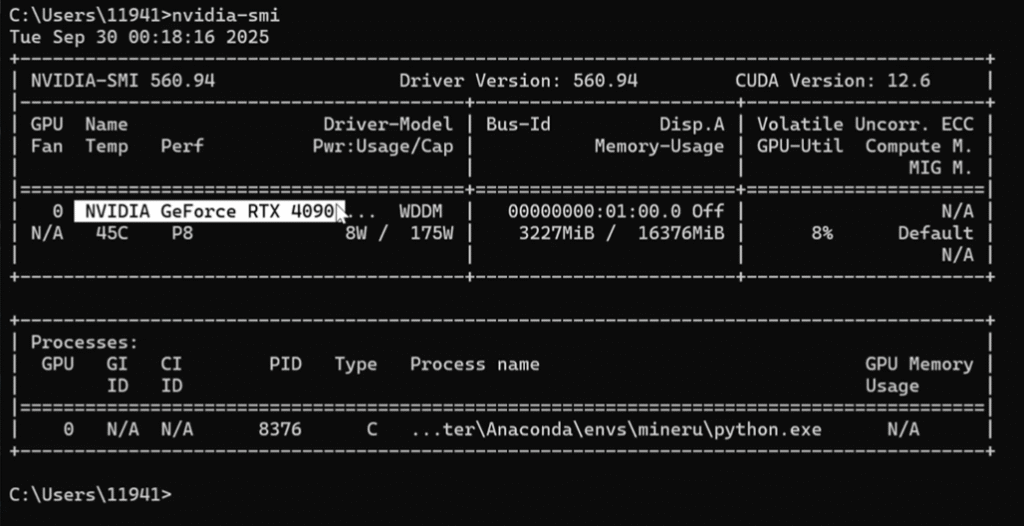
Important Note: If you don’t have an NVIDIA graphics card, you can use the CPU version—it will just run a bit slower.
1.2 Create a Dedicated Virtual Environment
To avoid dependency conflicts, we strongly recommend creating an isolated virtual environment:
Option 1: Create in Default Path
# create Python 3.10 env
conda create -n mineru python=3.10
conda activate mineru
Option 2: Create in Custom Path (Recommended)
# Specify installation path (ideal if C: drive has limited space)
conda create --prefix=D:\Computer\Anaconda\envs\mineru python=3.10
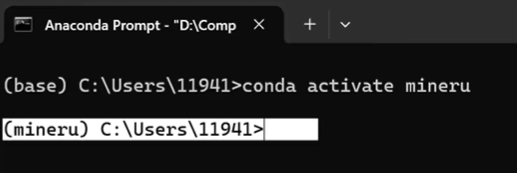
conda activate mineru
Once created, you’ll see (mineru) appear at the start of the command line, indicating the environment is activated successfully.
Step 2: Install MinerU
Now let’s move on to installing MinerU.
2.1 GPU Version Installation (Recommended for Graphics Card Users)
If you have an NVIDIA graphics card, we highly recommend the GPU version for much faster performance:
# 1. Install package manager
pip install uv

# 2. Uninstall old versions (to prevent conflicts)
pip uninstall mineru -y

# 3. Install the full MinerU version
uv pip install -U "mineru[core]" -i https://mirrors.aliyun.com/pypi/simple

# 4. Install PyTorch GPU version (choose based on your CUDA version)
# For CUDA 12.1 users
pip install torch==2.5.1 torchvision==0.20.1 torchaudio==2.5.1 --index-url https://download.pytorch.org/whl/cu121
2.2 Verify Installation
After installation, let’s check if everything worked:
# Check version information
mineru --version

# Check help information
mineru --help
If you see the version number and help info displayed correctly, the installation was successful!
Step 3: Download Model Files
MinerU requires some model files to work properly—this step is crucial:
Automatically Download All Models (Recommended)
# Download all necessary model files (approximately 8-12GB)
mineru-models-download --model_type all
Notes:
- The first download may take a while, so please be patient
- If the download fails, try again a few times
Step 4: Function Testing
Once the models are downloaded, let’s test if MinerU works correctly:
4.1 Prepare Test Files
First, create a test directory and prepare some PDF files:
# Create test directories
mkdir test_pdfs
mkdir test_output

# Place your PDF files in the test_pdfs directory
# Or download some test files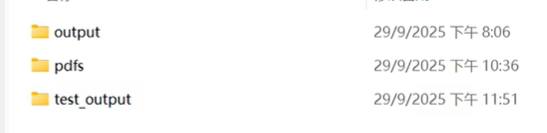
4.2 Basic Function Test
# Test single PDF parsing (Pipeline mode, faster)
mineru -p ./pdfs/demo1.pdf -o ./test_output/ --backend pipeline

# If you have an NVIDIA GPU, enable GPU acceleration
mineru -p ./test_pdfs/your_file.pdf -o test_output/ --backend pipeline --device cuda- – 4.3 High-Precision Mode Test MinerU’s VLM Mode and Pipeline Mode are two core working modes designed for different task scenarios. Their key differences lie in functional positioning, application scenarios, and processing logic, as detailed below: 1. Functional Positioning
- VLM Mode (Visual-Language Model Mode) Driven by a visual-language large model, it focuses on tasks involving multimodal input (combined images and text). It directly calls pre-trained VLM models (like those supporting image-text understanding) and uses the model’s end-to-end capabilities to complete inference from input to output, with no need for manual step decomposition. Example: Input an image and a text question (e.g., “How many cats are in the picture?”), and VLM mode returns the answer directly, relying on the model’s native image-text understanding capabilities.
- Pipeline Mode Centered on modular process orchestration, it breaks down complex tasks into multiple steps/components (e.g., data loading, preprocessing, model calls, result post-processing) and completes the task by executing these components in series or parallel. Each component can be configured independently (e.g., choosing different models, parameters, or tools), emphasizing process controllability and flexibility. Example: An OCR recognition + translation task can be broken down into four components: “image loading → OCR text extraction → machine translation → result output.” Pipeline mode handles scheduling these components to run in sequence.
- VLM Mode is Suitable For:
- Tasks requiring direct processing of mixed image-text input (e.g., image-based Q&A, image content description, image-text matching).
- Scenarios where you want to implement quickly without complex process design (relying on the model’s native capabilities to meet needs).
- Cases where high end-to-end performance in multimodal understanding is required, with no need for intervention in intermediate steps.
- Pipeline Mode is Suitable For:
- Tasks with complex, decomposable logic (e.g., data cleaning → analysis → visualization, multi-model collaborative inference).
- Situations requiring custom workflows (e.g., inserting intermediate processing steps, replacing models or tools in a specific ).
- Tasks involving collaboration between multiple tools/models (e.g., combining OCR, translation, database queries, etc.).
- Scenarios needing fine-grained process control (e.g., adjusting step order, adding conditional judgments, reusing partial components).
# VLM mode (higher precision but slower)
mineru -p ./pdfs/demo0.pdf -o test_output/ --backend vlm-transformers --device cuda

# For CPU users
mineru -p ./test_pdfs/your_file.pdf -o test_output/ --backend vlm-transformers --device cpu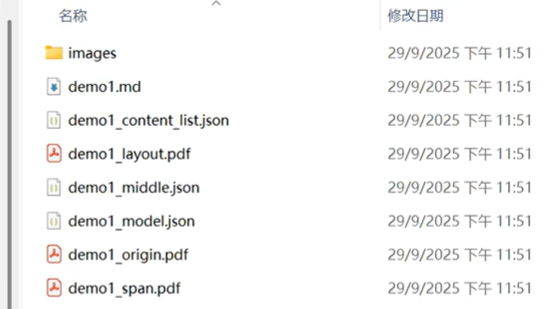
The generated demo1.md file is the parsed result of the PDF.
4.4 Batch Processing Test
# Batch process an entire folder of PDFs
mineru -p ./pdfs -o test_output/ --backend pipeline --batch-size 8
Step 5: Launch the Web Interface
MinerU also offers a user-friendly web interface, which we can access via a browser:
Gradio is an open-source Python library mainly used to quickly build and deploy interactive web interfaces for machine learning (ML) models, data science applications, or any Python function. Its core advantage is simplicity—no front-end development experience is needed, and just a few lines of code can turn a model or function into a browser-accessible interface, making it easy to demo, test, or share with others.
5.1 Start the Web Service
# Ensure you're in the correct environment
conda activate mineru

# Launch the web interface service
mineru-gradio --server-port 8080
5.2 Access the Web Interface
Once successfully launched, visit this address in your browser: http://localhost:8080
You’ll see a sleek web interface where you can directly upload PDF files for parsing!
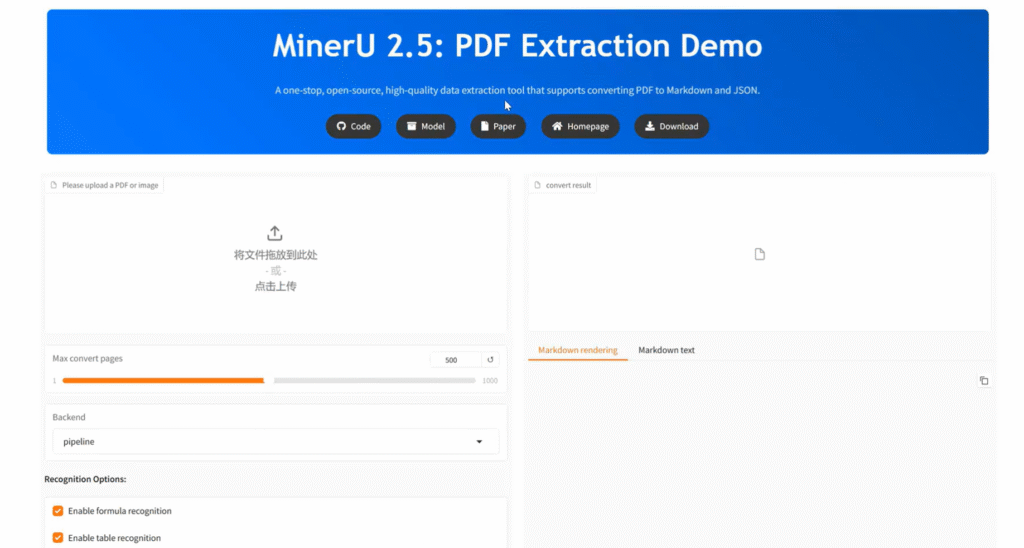
Click the upload button to upload PDF files—you can choose batch processing, select different models, and start parsing. The parsed results will appear on the right.
5.3 Troubleshooting
If the web interface fails to launch, try these solutions:
- Change the port:
# Try using a different port
mineru-gradio --server-port 7860- Reset network configurations (for Windows users):
# Run Command Prompt as administrator and execute these in order:
netsh winsock reset
netsh int ip reset
ipconfig /flushdns
Restart your computer and try launching again.
Step 6: Online Experience & Open Source Address
No local deployment needed—try MinerU online directly:
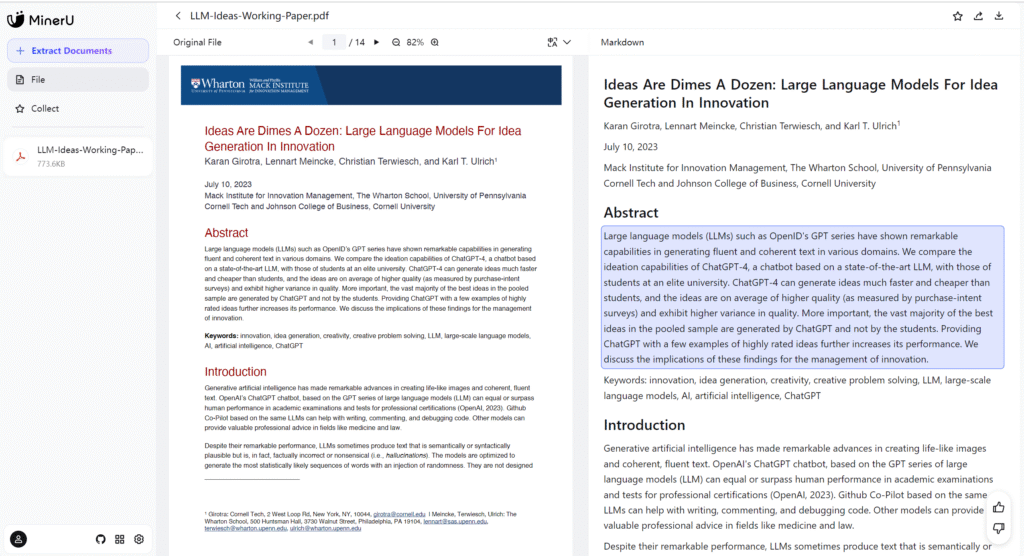
For regular text, the recognition accuracy is extremely high, even perfectly reproducing the layout and formatting.
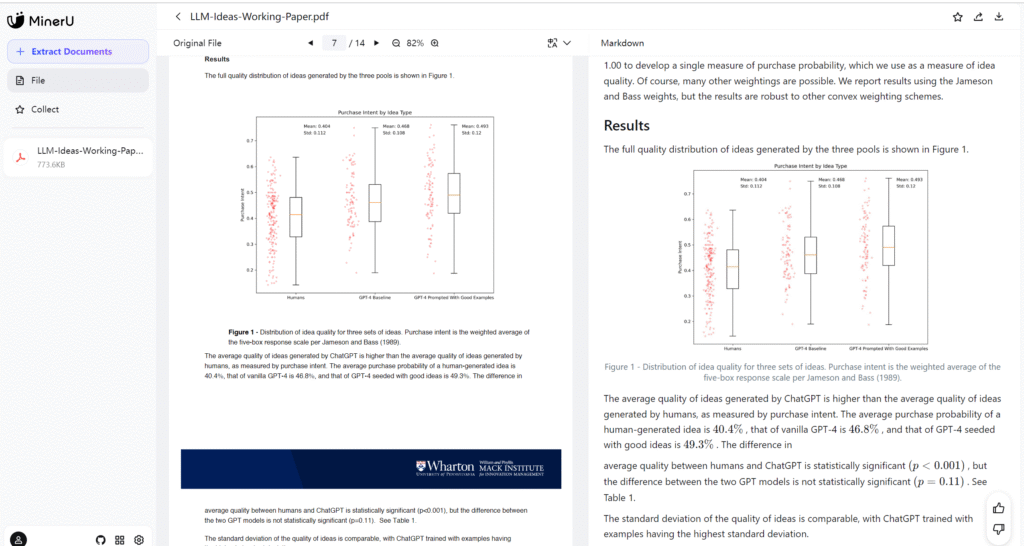
It can also correctly capture chart styles.
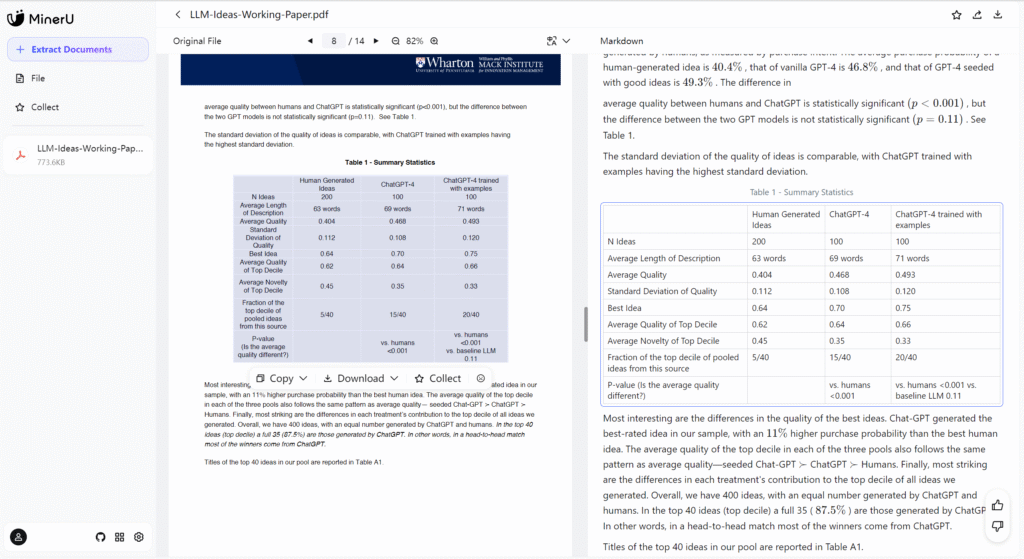
- Table styles are extracted flawlessly too. Congratulations! You’ve successfully deployed the MinerU 2.5 document parsing large model. Key Usage Reminders
- Environment Activation: Remember to activate the environment before each use
conda activate mineru- Two Usage Methods:
- Command-line mode: Ideal for batch processing and script automation
- Web interface mode: Better for daily use with its user-friendly interface
- Performance Tips:
- Users with NVIDIA GPUs should prioritize GPU mode
- For large files, use Pipeline mode (faster)
- For maximum precision, use VLM mode